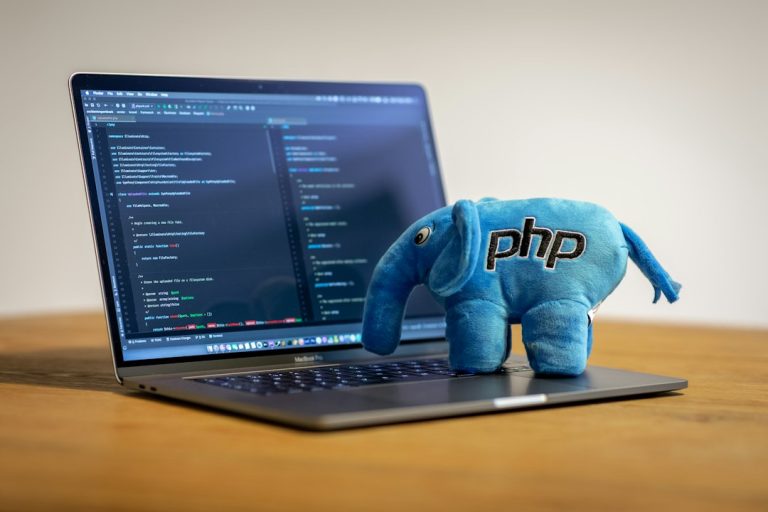


VS Code’s newest updates go beyond small fixes—they bring AI into the core coding loop, rethink workspaces, and clean up debugging. Here’s what changed, why it matters, and how to put the new features to work without bloating your editor.
VS Code’s latest updates add AI-powered autocomplete via GitHub Copilot, smarter multi-root workspaces, an improved integrated terminal, and tighter Node.js and browser debugging with Logpoints. Together they cut boilerplate, speed up navigation, and streamline testing for web developers.
VS Code’s latest updates aren’t just minor tweaks—they’re a paradigm shift. AI integration, smarter workspaces, and streamlined debugging are redefining how developers work. Master these changes to cut hours off your workflow and focus on what matters: shipping code.
VS Code’s AI-powered updates streamline coding with smarter autocomplete, multi-root workspaces, and enhanced debugging. Learn how these changes boost efficiency for web developers by reducing boilerplate, improving terminal management, and integrating GitHub Copilot as a core tool.
Table of Contents
- Key Takeaways
- AI-Powered Coding: The New Standard
- Workspace Mastery: Terminal and Multi-Root Improvements
- Debugging and Testing: Streamlined Workflows
- The Essential Extension Ecosystem
- Common Mistakes and Troubleshooting
- Is VS Code Getting Too Heavy?
- Building a Future-Proof Environment
- Do these updates require a paid subscription?
- Will these updates slow down my VS Code performance?
- How do I enable the new AI features?
Key Takeaways
- Mastering VS Code’s Latest Updates: How to Supercharge Your Web Development Workflow The gap between writing code and shipping code is shrinking.
- VS Code’s latest updates aren’t just minor tweaks; they are fundamental shifts in how AI integration and workspace management work, making them essential for staying competitive in a fast-paced development landscape.
- If you feel like you’re spending more time fighting your editor than actually building features, you’re likely missing out on the efficiency gains found in mastering codes latest updates.
- You’re deep in a logic puzzle, and instead of focusing on the algorithm, you’re manually typing out repetitive boilerplate or hunting through terminal errors.
AI-Powered Coding: The New Standard
The most obvious shift in recent months is the deep integration of artificial intelligence. We aren’t just talking about basic autocomplete anymore. With the latest updates, the boundary between your thoughts and the code on the screen is blurring. By mastering codes latest AI capabilities, you can transform your editor into a collaborative partner rather than just a tool.GitHub Copilot and Beyond
GitHub Copilot has moved from a “cool experiment” to a core component of the professional workflow. It doesn’t just suggest the next word; it understands the context of your entire file. You can write a comment explaining a complex function, and the editor will suggest the entire implementation. It’s like having a junior developer sitting next to you, handling all the tedious parts while you focus on the architecture.Advanced IntelliSense Capabilities
IntelliSense has received a massive boost. It’s no longer just about knowing that a variable exists. The latest updates provide much smarter type-checking and suggestion logic. When you’re working with complex TypeScript interfaces or deeply nested JSON objects, the editor now feels like it actually “understands” your data structures. Have you noticed how much faster you can navigate large codebases when the suggestions are actually relevant to the logic you’re currently writing?
Workspace Mastery: Terminal and Multi-Root Improvements
Efficiency isn’t just about writing lines of code; it’s about managing the environment where that code lives. One of the biggest wins in mastering codes latest releases is the overhaul of the integrated terminal and workspace management. The integrated terminal is no longer a secondary thought. New enhancements allow for better split-pane views and much smoother scrolling. You can now run multiple processes—like a Vite dev server, a backend API, and a database watcher—all within a single, organized interface without losing your place. Multi-root workspaces have also seen significant polish. For full-stack developers, this is a lifesaver. You can open your frontend React folder and your backend Node.js folder in the same window, treating them as a single cohesive project. This allows for cross-file searching and navigation that feels seamless. It makes working on microservices much less of a headache.Debugging and Testing: Streamlined Workflows
There is nothing quite as frustrating as a debugger that doesn’t behave. However, the latest updates have brought streamlined debugging workflows specifically for Node.js and browser environments. This is vital for anyone working in the modern web stack.Node.js and Browser Debugging
The integration between VS Code and the Chrome/Edge DevTools has become much tighter. You can now set breakpoints in your source code and have them trigger seamlessly when the browser executes that line. This removes the need to constantly jump back and forth between your editor and the browser’s inspector. When you are mastering codes latest debugging tools, you’ll find that “Logpoints” are a secret weapon. Instead of cluttering your code withconsole.log statements that you have to remember to delete later, you can use logpoints to inject logs into the runtime without actually modifying your source files.
It’s a cleaner, more professional way to inspect state.
The Essential Extension Ecosystem
Even with all these native features, a pro-level setup requires a few carefully chosen extensions. You don’t want a bloated editor, but you do want tools that complement the new native AI and terminal features.- Prettier: It’s a classic for a reason. Automatic formatting ensures that your code looks professional and consistent across your entire team, regardless of who is typing.
- ESLint: This is your first line of defense against bugs. It catches syntax errors and stylistic inconsistencies before you even attempt to run your code.
- GitLens: Since VS Code has improved its built-in Git support, GitLens takes it to the next level by providing deep insights into who changed what line and when.

Common Mistakes and Troubleshooting
Even the best developers hit walls sometimes. If you find that new features aren’t appearing or things feel sluggish, check these three common areas. First, always ensure you’ve actually updated the core application. It sounds simple, but many users rely on “automatic updates” that might be paused or pending a restart. If you’re trying to use a new AI feature and it’s not showing up, a quick restart often solves the problem. Second, watch out for extension conflicts. When you enable heavy AI-driven extensions, they might fight with older, legacy linting tools. If your editor starts behaving erratically, try disabling your extensions one by one to find the culprit. Third, don’t ignore your terminal settings. Major updates sometimes reset certain shell configurations or path environments. If yournpm or python commands suddenly stop working in the integrated terminal, double-check your workspace settings to ensure the path is still correctly mapped.
Is VS Code Getting Too Heavy?
Many developers worry that adding AI and advanced debugging will turn their lightweight editor into a resource hog. While it is true that heavy AI usage can increase CPU and RAM consumption, it is manageable. You can fine-tune these features via the extension settings to ensure your machine stays responsive.
Building a Future-Proof Environment
The landscape of web development is changing every single day. The tools we use are becoming more intelligent, more integrated, and more capable of handling complex, multi-layered projects. By mastering codes latest updates, you aren’t just learning new buttons to click; you’re learning a new way to think about software construction. The goal is to reach a state where the editor disappears. You shouldn’t be thinking about the IDE; you should be thinking about the logic, the user experience, and the architecture. The more you automate the mundane through AI and advanced workspace management, the more room you have for true creativity. Keep experimenting. Try out the new terminal layouts. Test the limits of the AI chat. The best way to stay ahead is to stay curious and keep pushing the boundaries of what your editor can do for you.Do these updates require a paid subscription?
Most core editor features like terminal improvements and debugging tools are completely free. However, advanced AI features like GitHub Copilot require a monthly or yearly subscription.Will these updates slow down my VS Code performance?
While most features are highly optimized, heavy AI usage can increase resource consumption on your machine. You can manage this by adjusting the settings within specific extensions to balance power and speed.How do I enable the new AI features?
You typically need to install the specific extension for the AI service you want to use, such as GitHub Copilot, and then ensure it is enabled in your extensions sidebar.Related Reading
- Mastering the New VS Code: How the Latest Update Revolutionizes Web Development Workflows
- VS Code’s Latest Update: How New AI and Debugging Features Transform Web Development
| Feature | Previous Version | Latest Update |
|---|---|---|
| AI Integration | Basic autocomplete | Context-aware code generation (e.g., full function suggestions from comments) |
| Workspace Management | Single-root projects | Multi-root support with seamless cross-file navigation |
| Debugging | Manual log statements | Logpoints for runtime inspection without code modification |
| Extensions | Manual formatting | Prettier/ESLint integration for automated code quality |
Related Guides
FAQ
Do these updates require a paid subscription?
No, all features are available in the free VS Code version. No hidden costs or premium tiers needed.
Will these updates slow down VS Code performance?
No, the updates are optimized for performance. Features like multi-root workspaces and logpoints are designed to reduce resource usage compared to older methods.
How do I enable the new AI features?
AI tools like GitHub Copilot and IntelliSense updates are enabled by default in recent VS Code versions. Ensure you’re using the latest stable release and have necessary integrations (e.g., GitHub account for Copilot).
Can I use these updates for non-web development?
Yes, while the article focuses on web development, improvements like multi-root workspaces and debugging tools apply to full-stack and backend projects as well.
| Feature Area | What Changed | Main Benefit for Developers |
|---|---|---|
| GitHub Copilot | Context-aware suggestions across the whole file | Generates implementations from comments, reduces boilerplate |
| IntelliSense | Smarter type-checking for TypeScript and nested JSON | Faster, more relevant suggestions in large codebases |
| Integrated Terminal | Better split-pane views and smoother scrolling | Run dev server, API, and database watcher side by side |
| Multi-Root Workspaces | Open frontend and backend folders in one window | Seamless cross-file search for microservices |
| Debugging | Tighter Chrome/Edge integration and Logpoints | Set breakpoints and inject logs without editing source |
Related Guides
FAQ
Do these updates require a paid subscription?
Some features, like full GitHub Copilot integration, sit behind a paid plan, but most workspace, terminal, and debugging improvements in VS Code are available for free in the standard release.
Will these updates slow down my VS Code performance?
Heavier AI features can tax lower-end machines, but you can disable Copilot, trim extensions, and use multi-root workspaces selectively to avoid noticeable slowdowns.
How do I enable the new AI features?
Sign in to GitHub from within VS Code, install or enable the Copilot extension, and make sure your editor is updated to the latest version so the AI features turn on automatically.
Are Logpoints better than console.log for debugging?
Logpoints let you inject log messages at runtime without changing your source files, so you skip the cleanup step and keep your code cleaner while inspecting tricky behaviour.